Installation

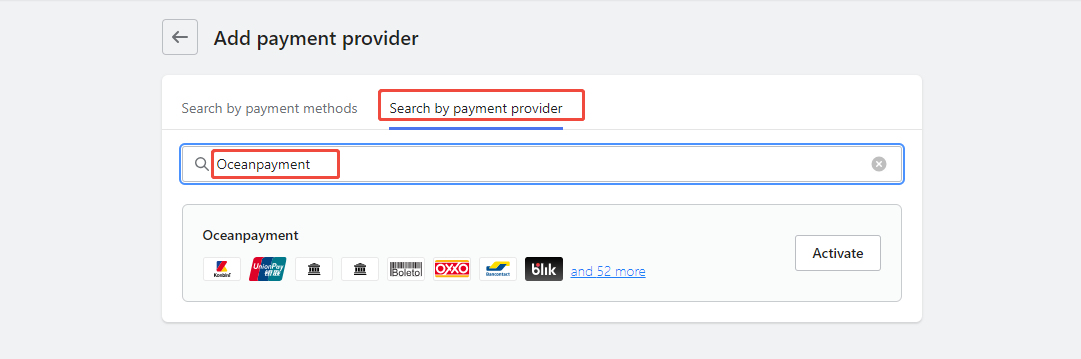
  1. Log in to the Shoplazza store backend (https://sso.shoplazza.com), go to Settings - Payments - Add Payment Service - Search by Payment Provider, search for: oceanpayment, and click Enable.

Configuration Information

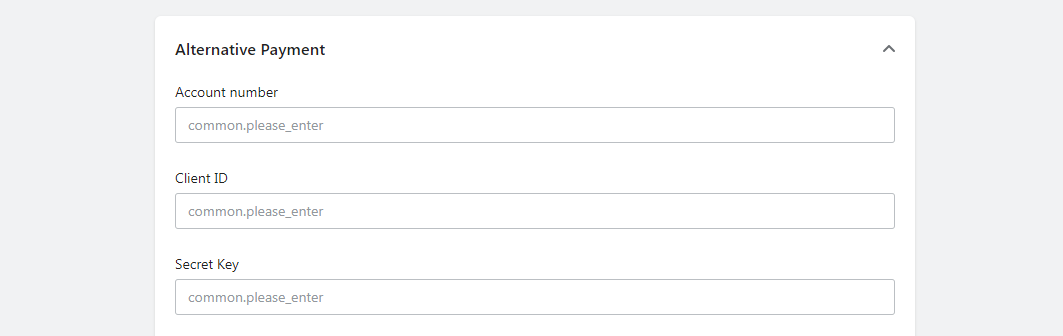
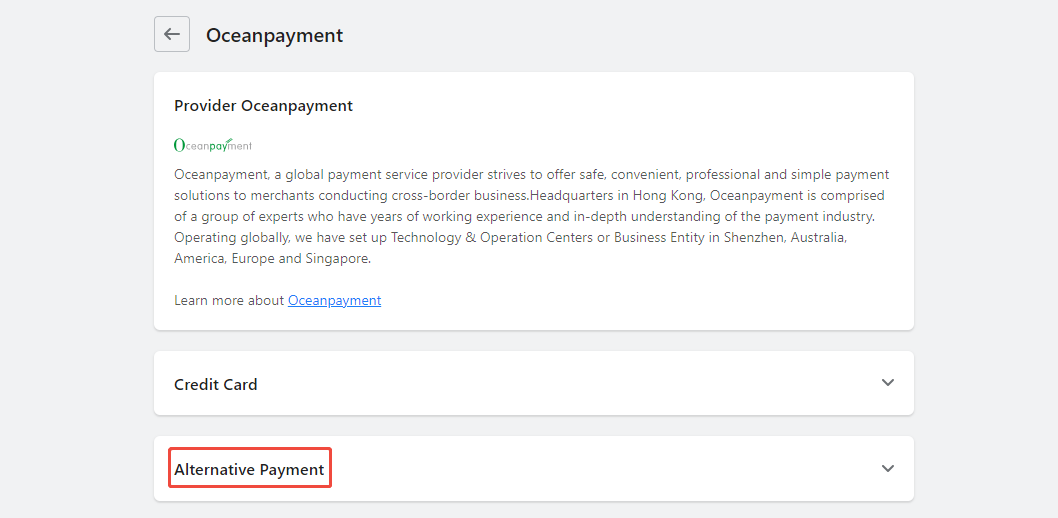
  1. Select Alternative Payments.
  1. Fill in the configuration information provided by Oceanpayment: Account, Terminal, and SecureCode.

Add payment method

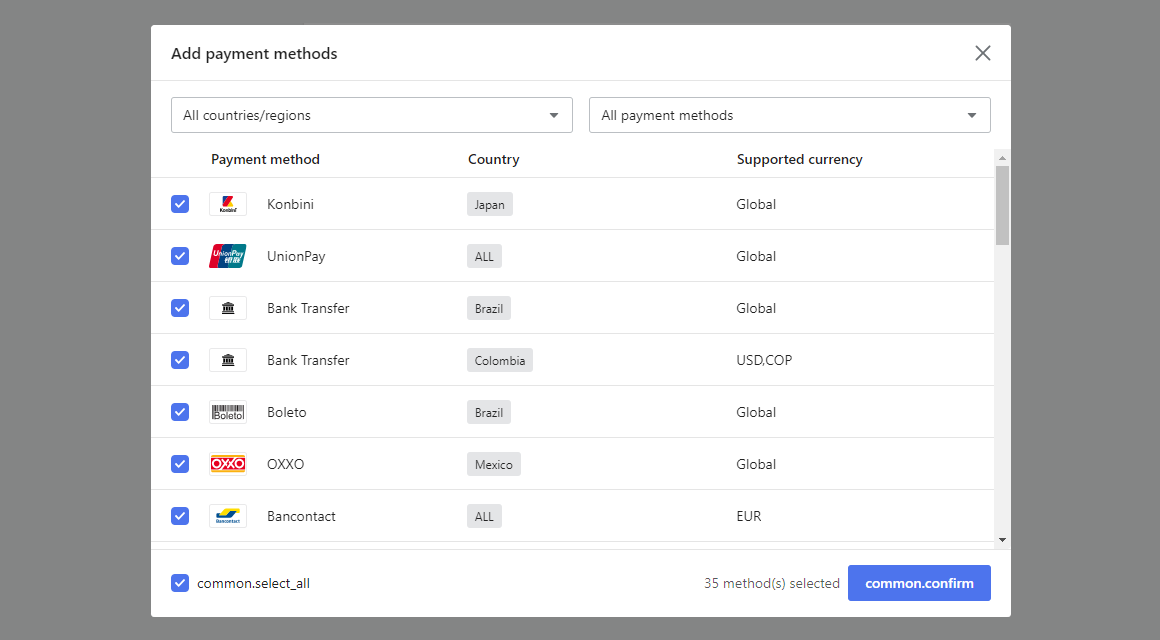
  1. Select the payment method you have applied for; do not select any payment method you have not applied for.
  2. Supported payment methods: Konbini UnionPay Bank Transfer(Brazil, Colombia, Malaysia, Philippines, Thailand) Boleto OXXO Bancontact Blik Trustly MyBank Malaysia Cash payment Atome Kakao Pay DANA LINE Pay BPI Touch'n Go TrueMoney Akulaku Boost FPS Debit Card - Vietnam PIX GrabPay iDEAL Skrill
  3. When choosing Bank Transfer (Brazil, Colombia), Boleto, or OXXO as your payment method, please refer to the Shopkeeper Technical Documentation, your store needs to set up a field to collect customer tax number.
Logistics Synchronization

  1. Check the box for automatic synchronization of tracking numbers to activate.

Uninstall

  1. Find your alternative payment method and click Disable.