Overview
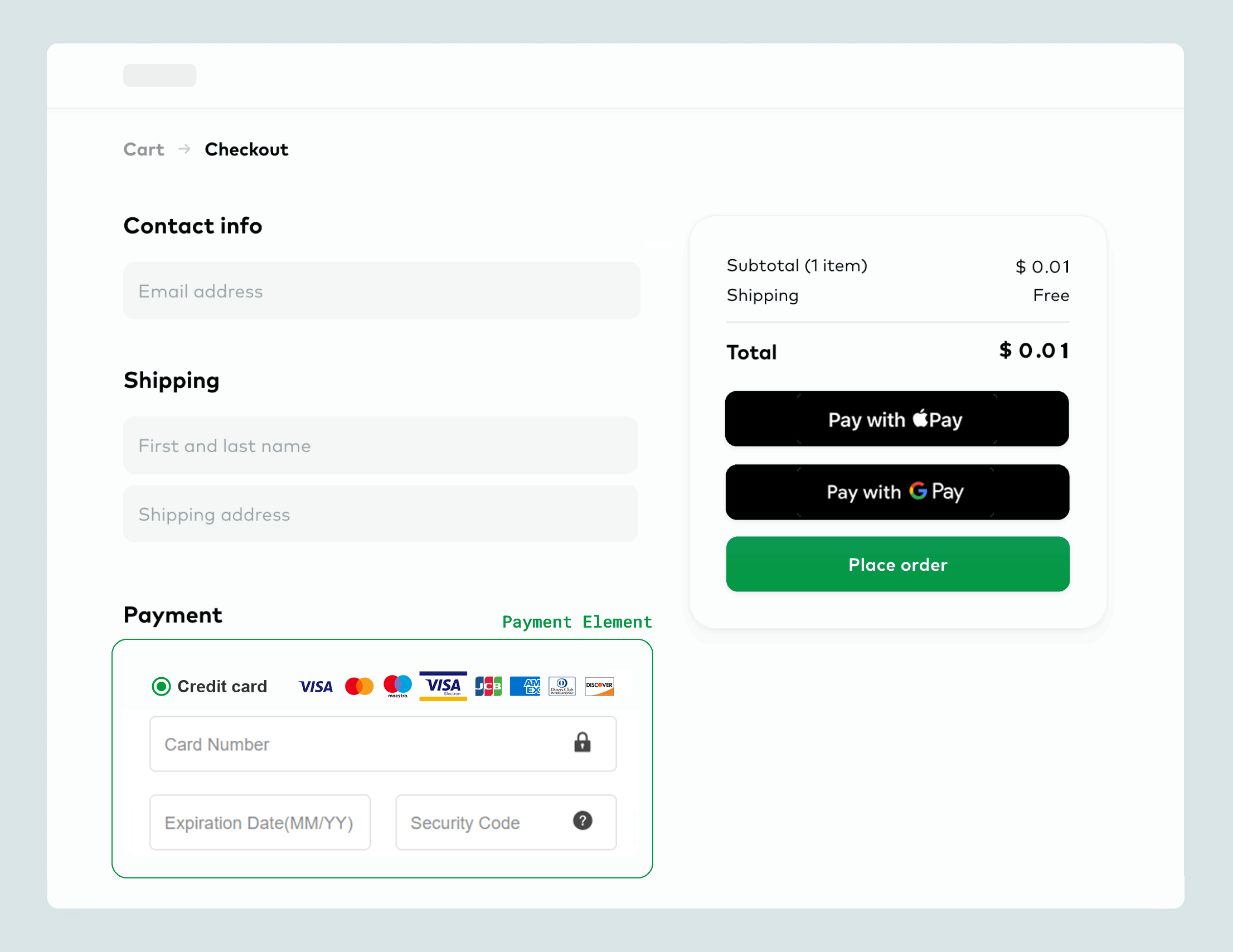
With Oceanpayment's JS SDK, you can embed the payment form directly into your checkout page. Customers can complete payments without leaving your site, ensuring a seamless brand experience.
Before You Start
Embedded payments currently support Credit Card, Google Pay, and Apple Pay only.
Flowchart
How It Works
- Credit Card
- Google Pay
- Apple Pay
- Load the Oceanpayment JS SDK on your checkout page:
//Load Oceanpayment
<script src="https://secure.oceanpayment.com/pages/js/oceanpayment.js"></script>

<script src="https://secure.oceanpayment.com/pub/js/jquery/jq.js"></script>
- Add a container element for the payment UI:
//Load Oceanpayment payment page
<div id="oceanpayment-element"></div>
- Initialize the payment UI in the container:
- Pass
trueto submit transactions in the sandbox environment. - Pass an empty value to submit transactions in the production environment.
<script>
  $(function() {
  	var configuration = {"showCardName": true};
    //Passing `true` commits to the sandbox environment; passing '' commits to the production environment.
    Oceanpayment.init(true,'','',configuration);
  });
</script>
- Customize Styles
You can specify an online CSS stylesheet to override the default styles of the Oceanpayment payment page and customize its appearance. The
cssUrlparameter is empty by default when initializing the payment page.
<script>
  $(function() {
    var configuration = {"showCardName": true};
    //CSS stylesheet URL
    Oceanpayment.init(true,'https://example.com/css/style.css','',configuration);
  });
</script>
- Customize Payment Language
- By default, the payment page automatically adapts to the device language. You can also specify the payment language by passing a language code. 24 payment languages are supported. For details, please refer to Supported Payment Languages. The default language is English (en_US).
<script>
  $(function() {
    var configuration = {"showCardName": true};
    //Language code
    Oceanpayment.init(true,'https://example.com/css/style.css','en_US',configuration);
  });
</script>
- Submit Payment
- Call the payment method, ensure duplicate submissions are prevented when initiating payment.
- Required form parameters must be converted to
JSONusingtransformToJson()before calling checkout(). - Then call
checkout()to submit the required parameters to the Oceanpayment payment gateway.
//Submit parameters
<script>
  //Payment
  function pay() {
    //Get form elements
    var register = $("#payForm");
    //Serialize()
    var formData = register.serializeArray();
    //Submit parameter information to Oceanpayment
    Oceanpayment.checkout(transformToJson(formData));
  }

  //JSON data
  function transformToJson(formData){
    var obj={}
    for (var i in formData) {
      obj[formData[i].name]=formData[i]['value'];
    }
    return obj;
  }
</script>
- Load the Oceanpayment JS SDK on your checkout page:
//Load Oceanpayment
<script src="https://secure.oceanpayment.com/pages/js/oceanpayment-googlepay.js"></script>

<script src="https://secure.oceanpayment.com/pub/js/jquery/jq.js"></script>
- Add a container element for the payment UI:
//Load Google Pay payment button
<div id="oceanpayment-googlepayelement"></div>
- Initialize the payment UI in the container
- Pass
trueto submit transactions in the sandbox environment. - Pass an empty value to submit transactions in the production environment.
billCountry: The country/region code of the store's registered location, in ISO 3166 format.
//Initialize Oceanpayment
<script>
   $(function() {
        //Passing `true` commits to the sandbox environment; passing '' commits to the production environment.
        onePageGooglePay.init(true, {
            transactionInfo: {
                //Enter the order amount, currency, and country.
                orderCurrency:ORDER_CURRENCY,/*Billing Currency*/
                orderAmount:ORDER_AMOUNT,/*Billing Amount*/
                billCountry:BILLING_COUNTRY,/*Store Registration Country/Region Code*/
            }
        });
  });
</script>
- Custom Styling
- You can override the default styles of the Oceanpayment payment page by providing an online CSS stylesheet to customize its appearance. The cssUrl parameter is optional and defaults to an empty value during initialization. For details, see
cssUrl.
<script>
   $(function() {
        onePageGooglePay.init(true, {
            cssUrl: '',/*The URL of the online CSS stylesheet used to customize the style and size of the Google Pay button.*/
            buttonStyle: {
                buttonColor:'',/*Button color*/
                buttonType:'',/*Button type*/
                buttonRadius:'',/*Rounded corners*/
                buttonSizeMode:'',/*Size*/
                buttonLocale:''/*Button language*/
            }
        });
  });
</script>
- Update Order Amount and Currency
- When the order amount or currency changes, such as due to changes in product prices, discounts, taxes, or shipping fees, merchants can call this method to update the transaction information.
<script>
  function updateTransactionInfo() {
    onePageGooglePay.updateTransactionInfo({
      transactionInfo: {
        orderCurrency: ORDER_AMOUNT, //Currency
        orderAmount: ORDER_AMOUNT //Amount
      }
    });
  }
</script>
- Trigger the Google Pay Payment Popup
- Merchants can use the
onePageGooglePay.validateResults()method to control whether the Google Pay payment popup is displayed. Call this method at the appropriate time after Google Pay has been initialized, based on the results of the website's form validation.- If required fields, such as billing information, fail validation, call onePageGooglePay.validateResults(false) to prevent the payment popup from being displayed.
- Once all required fields pass validation, call onePageGooglePay.validateResults(true) to display the payment popup.
<script>
  function validateResults() {
    onePageGooglePay.validateResults(true);
  }
</script>
- Submit payment
- Call the payment method, ensure duplicate submissions are prevented when initiating payment.
- Required form parameters must be converted to
JSONusingtransformToJson()before calling checkout(). - Then call
checkout()to submit the required parameters to the Oceanpayment payment gateway.
//Submit parameters
<script>
//Payment
  function opGooglepay() {
    //Get form elements
    var register = $("#payForm");
    //Serialize()
    var formData = register.serializeArray();
    //Submit parameter information to Oceanpayment
    onePageGooglePay.checkout(transformToJson(formData));
  }
  //JSON data
  function transformToJson(formData){
    var obj={}
    for (var i in formData) {
      obj[formData[i].name]=formData[i]['value'];
    }
    return obj;
  }
</script>
When using Apple Pay's embedded integration, merchants must first add an Oceanpayment hosting domain verification file for each of their domains verification.
- Load the Oceanpayment JS SDK on your checkout page:
//Load Oceanpayment
<script src="https://secure.oceanpayment.com/pages/js/oceanpayment-applepay.js"></script>

<script src="https://secure.oceanpayment.com/pub/js/jquery/jq.js"></script>
- Add a container element for the payment UI:
//Load Apple Pay payment button
<div id="oceanpayment-applepayelement"></div>
- Initialize the payment UI in the container
- Pass
trueto submit transactions in the sandbox environment. - Pass an empty value to submit transactions in the production environment.
terminal: The Oceanpayment terminal ID. This parameter is required.billCountry: The country/region code of the store's registered location, in ISO 3166 format.
//Initialize Oceanpayment
<script>
   $(function() {
        //Passing `true` commits to the sandbox environment; passing '' commits to the production environment.
        onePageApplePay.init(true, {
            terminal: '99514901', /* Oceanpayment’s terminal*/
            transactionInfo: {
                //Enter the order amount, currency, and country.
                orderCurrency:ORDER_CURRENCY,/*Billing Currency*/
                orderAmount:ORDER_AMOUNT,/*Billing Amount*/
                billCountry:BILLING_COUNTRY,/*Store Registration Country/Region Code*/
                orderNumber:ORDER_NUMBER,/*Order Number*/
                billAddress:BILLING_ADDRESS /*Billing Address*/
            },

        });
  });
</script>
- Custom Styling
- You can override the default styles of the Oceanpayment payment page by providing an online CSS stylesheet to customize its appearance. The cssUrl parameter is optional and defaults to an empty value during initialization. For details, see
cssUrl.
<script>
   $(function() {
        onePageApplePay.init(true, {
            cssUrl: '',/*The URL of the online CSS stylesheet used to customize the style and size of the Apple Pay button.*/
            buttonStyle: {
                buttonstyle:'', /*Button color*/
                type:'' /*Button type*/
            }
        });
  });
</script>
- Update Order Amount and Currency
- When the order amount or currency changes, such as due to changes in product prices, discounts, taxes, or shipping fees, merchants can call this method to update the transaction information.
<script>
  function updateTransactionInfo() {
    onePageApplePay.updateTransactionInfo({
      transactionInfo: {
        orderCurrency: ORDER_CURRENCY, //Currency
        orderAmount: ORDER_AMOUNT //Amount
      }
    });
  }
</script>
- Trigger the Apple Pay Payment Popup
- Merchants can use the
onePageApplePay.validateResults()method to control whether the Apple Pay payment popup is displayed. Call this method at the appropriate time after Apple Pay has been initialized, based on the results of the website's form validation.- If required fields, such as billing information, fail validation, call onePageApplePay.validateResults(false) to prevent the payment popup from being displayed.
- Once all required fields pass validation, call onePageApplePay.validateResults(true) to display the payment popup.
<script>
  function validateResults() {
    onePageApplePay.validateResults(true);
  }
</script>
- Submit payment
- Call the payment method, ensure duplicate submissions are prevented when initiating payment.
- Required form parameters must be converted to
JSONusingtransformToJson()before calling checkout(). - Then call
checkout()to submit the required parameters to the Oceanpayment payment gateway.
//Submit parameters
<script>
//Payment
  function opApplepay() {
    //Get form elements
    var register = $("#payForm");
    //Serialize()
    var formData = register.serializeArray();
    //Submit parameter information to Oceanpayment
    onePageApplePay.checkout(transformToJson(formData));
  }
  //JSON data
  function transformToJson(formData){
    var obj={}
    for (var i in formData) {
      obj[formData[i].name]=formData[i]['value'];
    }
    return obj;
  }
</script>
Handling Payment Results
- Frontend: Listen for payment result events to get immediate feedback.
- Backend: Use noticeUrl to receive asynchronous notifications and confirm the final payment status.
Oceanpayment sends the payment result to your backUrl page. The backUrl must exactly match the current page URL, including the full path, to allow the CallBack() method to receive the payment response.
- Credit Card
- Google Pay
- Apple Pay
var oceanpaymentCallBack = function(data){}
- If card information fails validation, data.msg will contain an error message, for example:
//Incorrect card number
{"code":-1, "msg":"Your credit card number is incorrect."}
- If data.msg is empty, the card information is valid. In this case, handle the payment response and check the following scenarios:
- If xml->pay_url is empty, no 3D verification is required; he XML contains the payment result directly. An asynchronous notification will also be sent to noticeUrl.
- If xml->pay_url is present, redirect the customer to complete 3D verification. After verification, the payment result will be sent again to backUrl (default received via $_POST). An asynchronous notification will also be triggered via noticeUrl.
var oceanpaymentCallBack = function(data){
    if(data.msg){
       //Card information error processing
       console.log(data.msg);
    }else{
       //Processing order return
       //Receive the backUrl response and parse the returned XML.
       console.log(data);
    }
}
var oceanpaymentGooglePayCallBack = function(data){}
2.If data.code = 2, it means the Google Pay button loaded successfully. In the else block, receive the payment response and determine the following two scenarios:
- If the
xml->pay_urlfield is empty, then thexmlfile contains the returned payment result. In this case, an asynchronousnoticeUrlnotification will also be triggered. - If the
xml->pay_urlfield is not empty, a redirect is needed to open thepay_urlto complete 3D validation. The payment result will then be sent back tobackUrl, which by default uses $_POST to receive the return. This will also trigger an asynchronous notification vianoticeUrl.
var oceanpaymentGooglePayCallBack = function(data){
   if (data.code == 2) {

      opGooglepay();
   }else{
      //Handle order return.
      //console.log(data)
}
- When
data.code= 3, it means the user has closed the Google Pay payment pop-up. The data returned format is:
{"code":3,"msg":"","method":"GooglePay"}
var oceanpaymentApplePayCallBack = function(data){}
- If
data.code= 2, it means the Apple Pay button loaded successfully. In theelseblock, receive the payment response and determine the following two scenarios:
- If the
xml->pay_urlfield is empty, then thexmlfile contains the returned payment result. In this case, an asynchronousnoticeUrlnotification will also be triggered. - If the
xml->pay_urlfield is not empty, a redirect is needed to open thepay_urlto complete 3D validation. The payment result will then be sent back tobackUrl, which by default uses $_POST to receive the return. This will also trigger an asynchronous notification vianoticeUrl.
var oceanpaymentApplePayCallBack = function(data){
   if (data.code == 2) {
      //The button is activated to initiate the payment process.
      opApplepay();
   }else{
      //Handle order return.
      //console.log(data);
   }
}
- When
data.code= 3, it means the user has closed the Apple Pay payment pop-up. The data returned format is:
{"code":3,"msg":"","method":"ApplePay"}
- Payment Response Example:
- 3D scene
- Non-3D scenes
<?xml version="1.0" encoding="UTF-8"?>
<response>
    <notice_type>transaction</notice_type>
    <push_dateTime>2025-09-03 10:21:14</push_dateTime>
    <account>995149</account>
    <terminal>99514901</terminal>
    <signValue>924347D8E9C9BAC2EC91449C70540FF49E0DD5711F03E8A871DCA34CED023AB6</signValue>
    <methods>Credit Card</methods>
    <order_number>JSCSE-3128790866</order_number>
    <card_country>PL</card_country>
    <order_currency>USD</order_currency>
    <order_amount>0.01</order_amount>
    <order_notes></order_notes>
    <card_number>411111***1111</card_number>
    <card_type>Visa</card_type>
    <payment_country></payment_country>
    <payment_id>250902111334242179639</payment_id>
    <payment_authType>2</payment_authType>
    <payment_status>-1</payment_status>
    <payment_details>80093:3D Authorized Service not completed</payment_details>
    <payment_solutions></payment_solutions>
    <payment_risk></payment_risk>
    <payment_amount></payment_amount>
    <payment_exchangeRate></payment_exchangeRate>
    <auth_reason></auth_reason>
    <auth_code></auth_code>
    <pay_userId></pay_userId>
    <pay_url>https://secure.oceanpayment.com:443/gateway/direct/redirect?pay_id=af5e28ee57061f4fd1dd307a7bc56c7289d9041d0b5494195d91b7c5166b6e30</pay_url>
</response>
- Merchants redirect users to
pay_url:
HTTP/1.2 301 Moved Permanently
Location: {pay_url}
<?xml version="1.0" encoding="UTF-8"?>
<response>
    <notice_type>transaction</notice_type>
    <push_dateTime>2025-09-03 10:21:14</push_dateTime>
    <account>995149</account>
    <terminal>99514901</terminal>
    <signValue>6E48108837603DF6758BD6CE81C9F8AEE6FDC40D14D056C41EBCC1B28B1F2A0D</signValue>
    <methods>Credit Card</methods>
    <order_number>JSCSE-3128790866</order_number>
    <card_country>PL</card_country>
    <order_currency>USD</order_currency>
    <order_amount>0.01</order_amount>
    <order_notes></order_notes>
    <card_number>411111***1111</card_number>
    <card_type>Visa</card_type>
    <payment_country>-</payment_country>
    <payment_id>250903102114589130422</payment_id>
    <payment_authType>0</payment_authType>
    <payment_status>1</payment_status>
    <payment_details>80000:Transaction Approved</payment_details>
    <payment_solutions>None required.</payment_solutions>
    <payment_risk></payment_risk>
    <payment_amount></payment_amount>
    <payment_exchangeRate></payment_exchangeRate>
    <auth_code></auth_code>
    <pay_userId></pay_userId>
</response>
- Check payment status, and verify the final transaction status using asynchronous notifications sent to noticeUrl.
Signature
The signature (signValue) format differs depending on the Hosted Checkout redirect mode you choose. Refer the Signature and Verification section for detailed instructions.