Overview
- Use EasyPay Payment Rules in your Shopify store to show/hide specified payment methods by setting the billing country;
- You can rename the payment method names displayed on the payment page;
- Configure other features you need.
Installation Steps
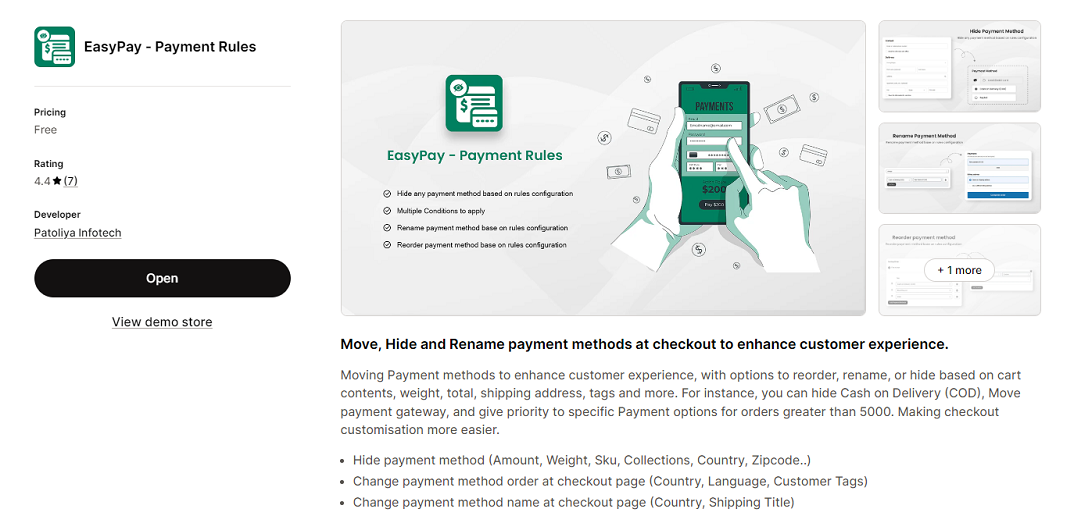
- Find and install EasyPay Payment Rules in the Shopify app store: https://apps.shopify.com/payment-checkout
Show/Hide Payment Methods
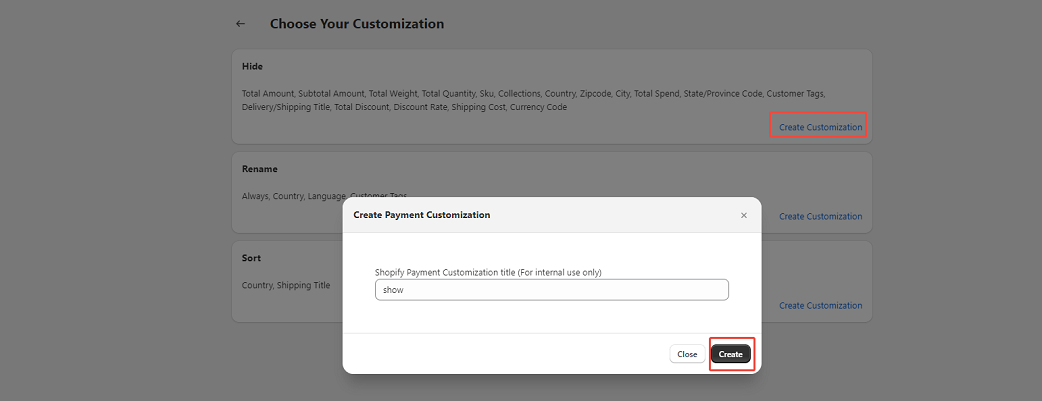
- Open EasyPay Payment Rules in the Shopify app and select the menu: 【Choose Your Customization】 - 【Hide】 - 【Create Customization】.
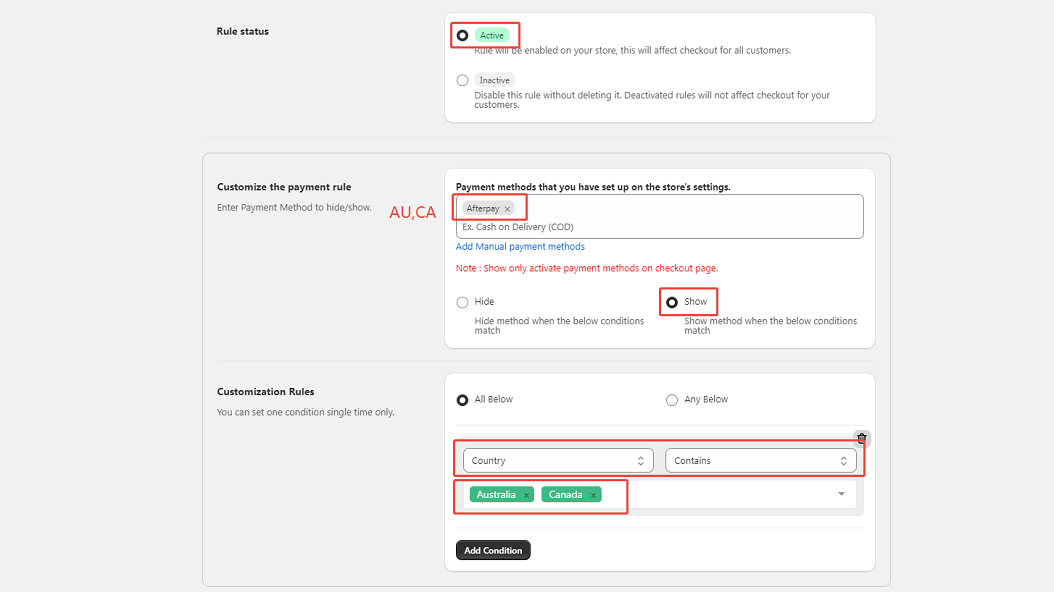
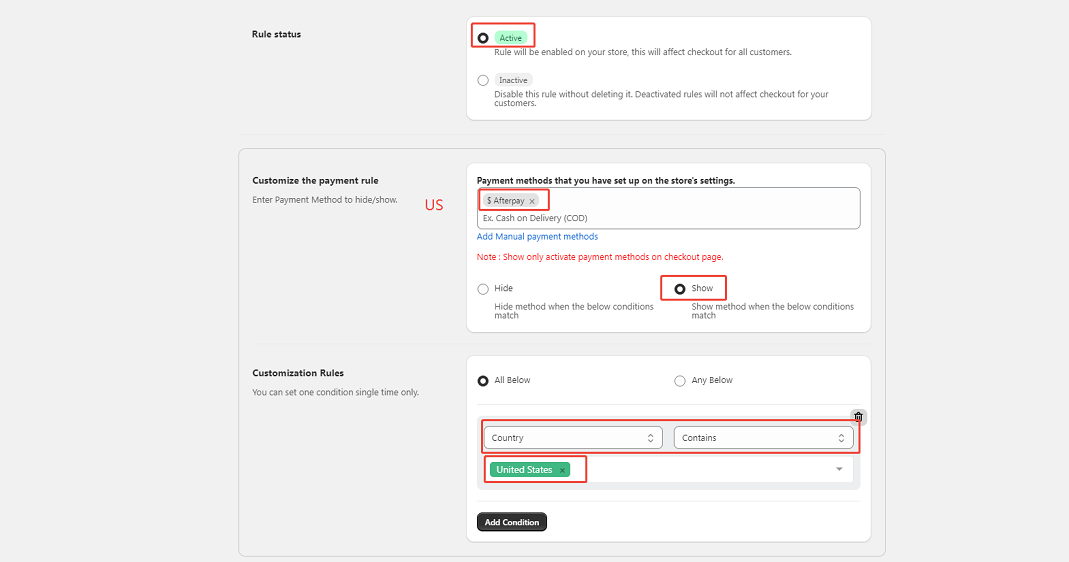
- Configure billing country rules to display specified payment methods. Multiple rules can be set individually (the specific rules depend on the payment app installed; if no app is installed, no rules need to be set). For example:
- AU,CA->Afterpay
- US->$ Afterpay(Note: There is a space between the $ symbol and Afterpay.)
- GB->Clearpay
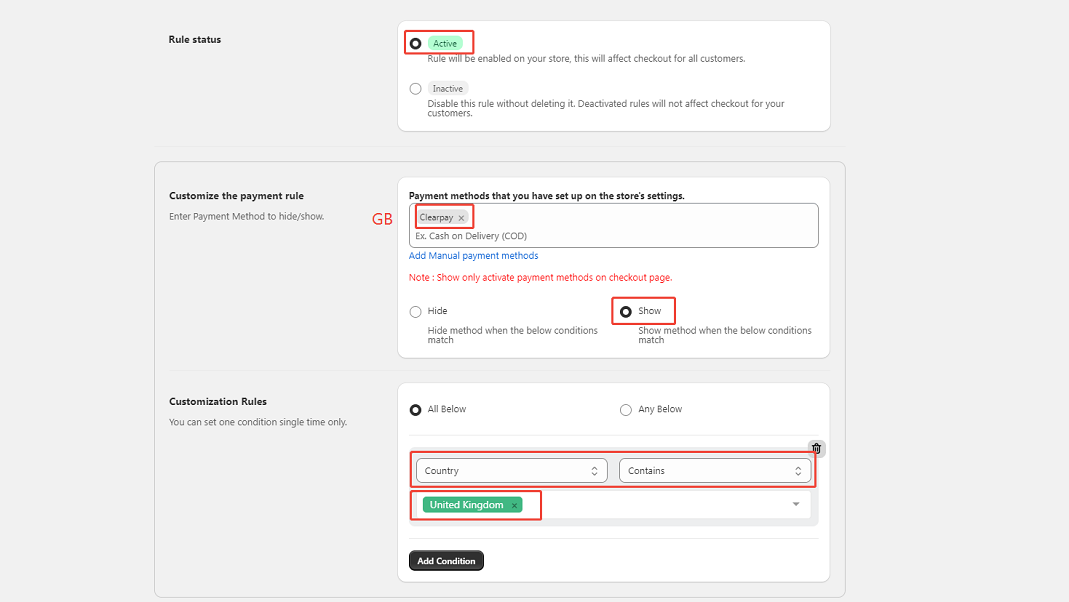
- Renderings:

Rename Payment Method
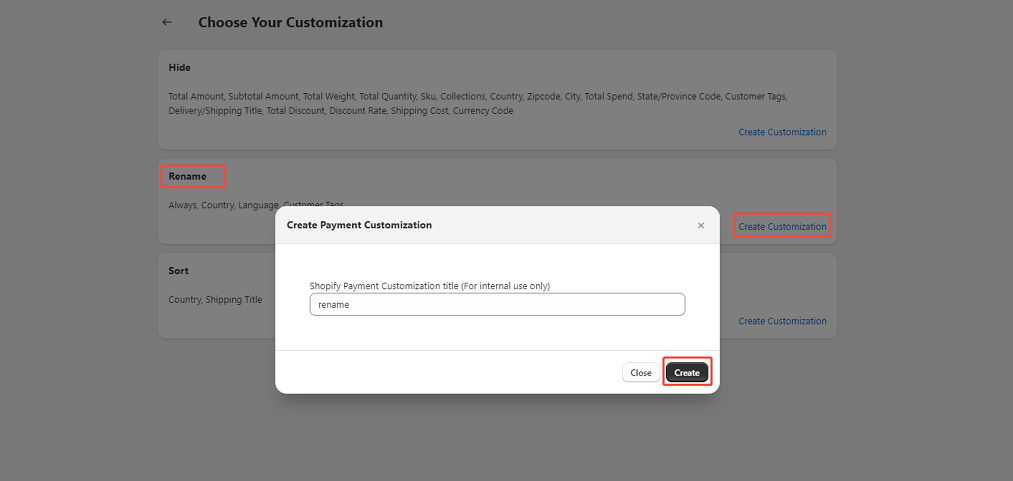
1.Select menu 【Choose Your Customization】 - 【Rename】 - 【Create Customization】。
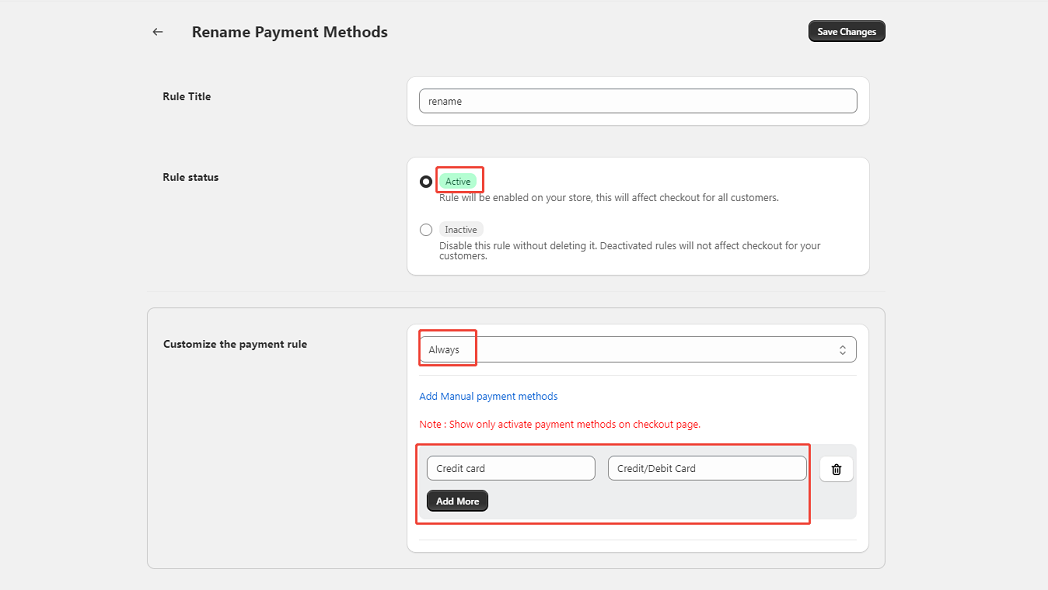
- Select the payment method you want to rename and click Save. For example: Rename Credit Card to Credit/Debit Card.
Disclaimer
Oceanpayment has not established a formal partnership with the app; it was built by an independent developer on the Shopify platform. All related issues (including paid services from EasyPay - Payment Rules) and customer support are not with Oceanpayment and should be addressed directly to EasyPay - Payment Rules by the merchant. You can also find suitable apps for your store in the Shopify App Store (https://apps.shopify.com), such as BeSure Checkout Rules (https://apps.shopify.com/checkout-rules).