Overview
On Site Message (OSM) is a tool provided by Klarna to inform customers that Klarna payments are available on your website. This service is available to all retailers using Klarna Payments or Klarna Checkout. And it's free!
Installation Instructions
Before installing Klarna OSM, please ensure that the following conditions are met:
- Please ensure you are using Shopify theme version 2.0. If you are not using theme version 2.0, please refer to the documentation to upgrade to theme version 2.0: Theme Upgrade.
- You have applied for the Klarna payment gateway through OceanPayment.
- Contact OceanPayment technical support to obtain your store's corresponding
MIDandclientid.
MID and Clientid Explanation
- Each domain has a corresponding MID and ClientID in North America and Europe. North American MIDs begin with "N," and European MIDs begin with "K."
- MID: Merchant ID, a unique merchant identifier assigned to each merchant using Klarna, consisting of a letter followed by a string of numbers.
- Examples of MID and ClientID:
- North America: MID: N3210944; ClientID: 8a2b11ac-7f55-645e-8fcd-3154f28ebca8
- Europe: MID: K8685421; ClientID: 71305f12-e8e5-5caa-812e-bfcddfad6f9i
Installation Steps
- Find and install On Site Message (OSM) in the Shopify app store: https://apps.shopify.com/klarna-on-site-messaging
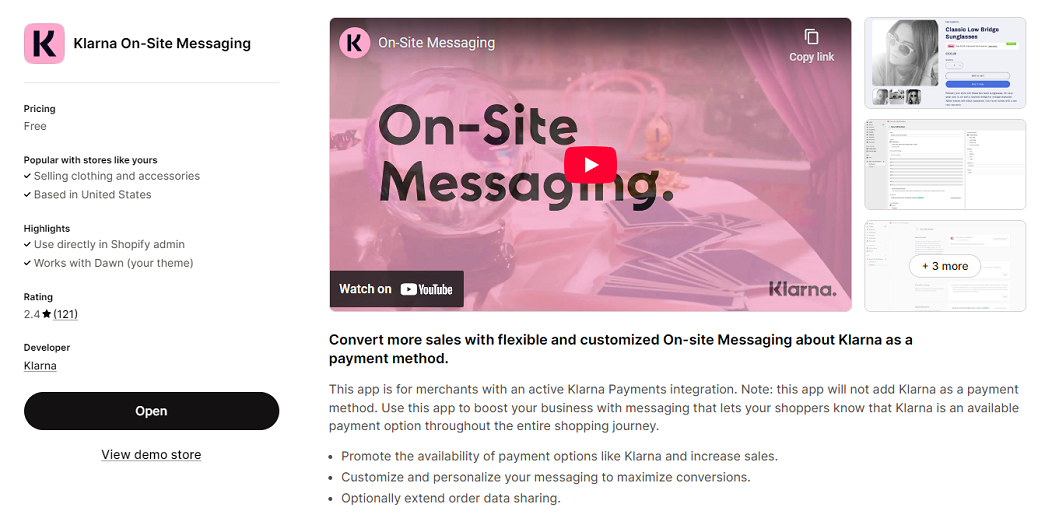
Account Configuration
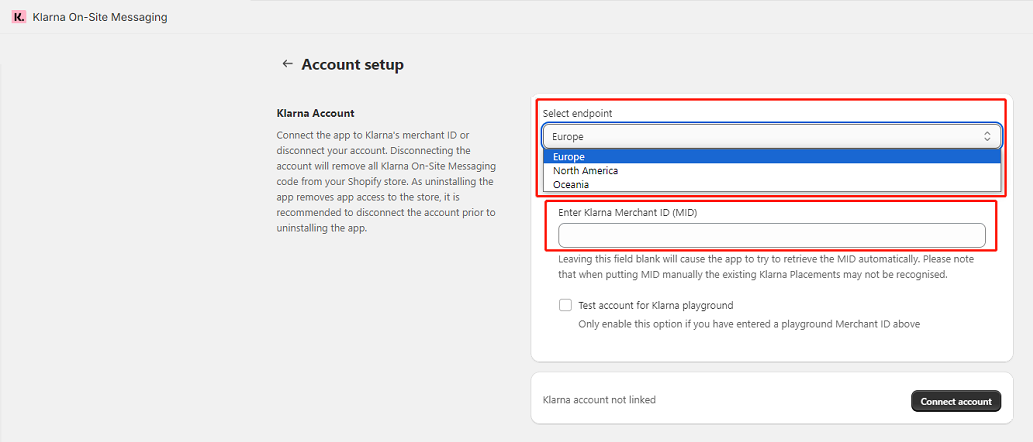
- In the Shopify app, open On Site Message and find 【Account Septup】 - 【Klarna Account】.
- In the "Select endpoint" section, select the corresponding region (Europe, NA, Oceania) and enter the corresponding MID in the input box below. Click "Connect Account" when finished.
Theme Settings
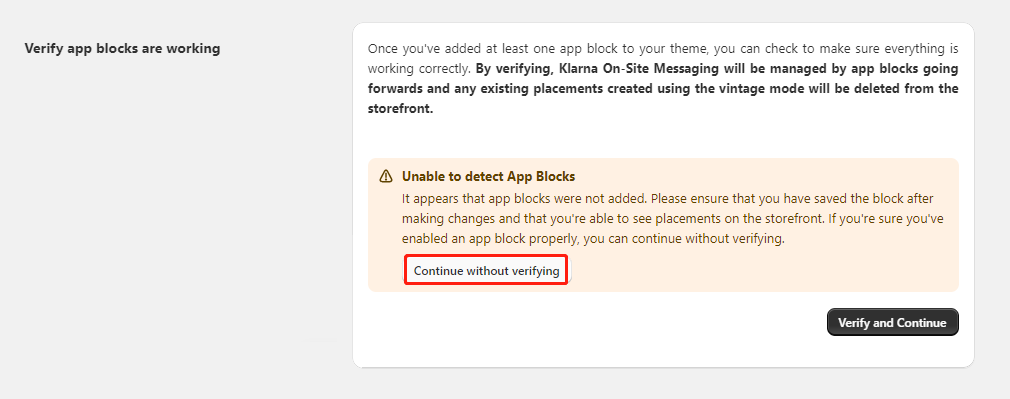
- If you are using theme version 2.0, you can directly click App Block Instruction to configure the plugin.
- If you see an "Unable to Detect App Blocks" message after Verify and Continue, click Continue without Verifying to complete the configuration.
Add Klarna OSM to the product page
- Access your custom theme within the Shopify store backend: 【Online Store】 - 【Themes】 - 【Customise】.
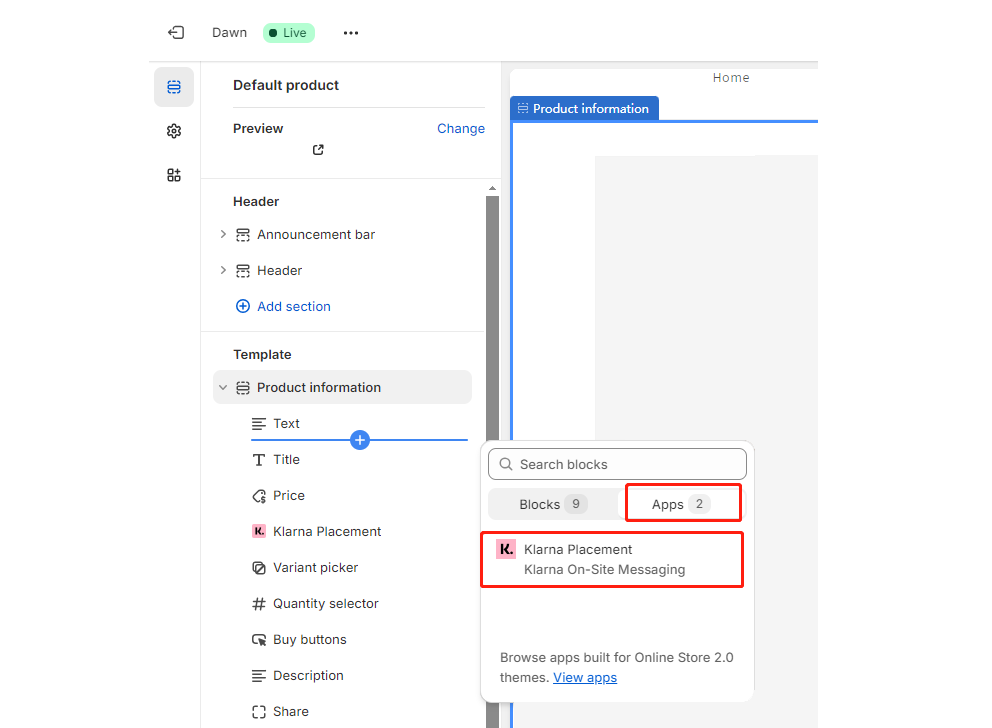
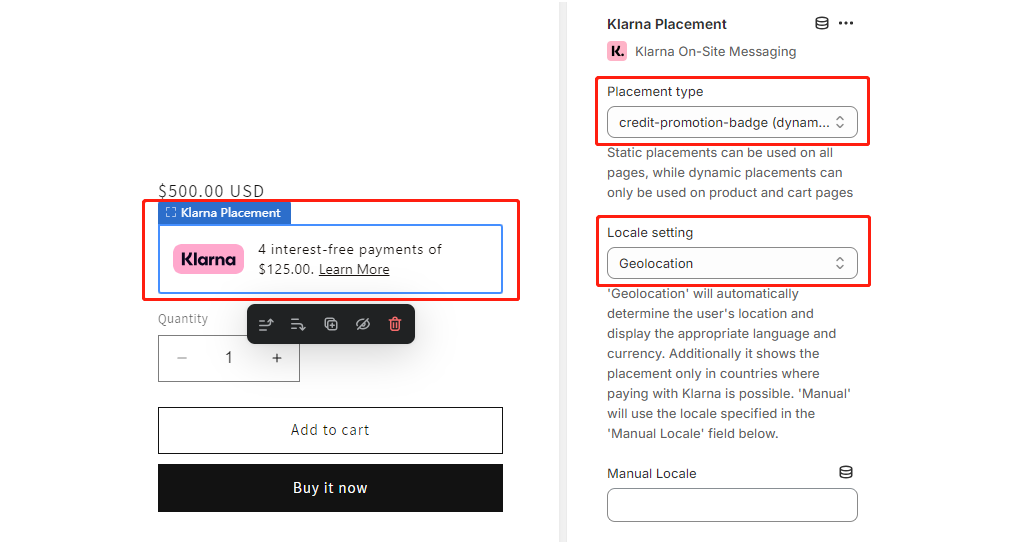
- In the configuration panel on the right, select the required display type Placement type and language Locale Setting, then click Save.
Frequently Asked Questions
- After setup, Klarna OSM will not be displayed in the web browser.
- Check that the domain name and region (North America, Europe) corresponding to the MID are correct.
- Klarna OSM recognizes the user's IP address. Please adjust your IP address to the corresponding coverage area.
- A few themes may have incompatibility issues between the Product Block and Klarna OSM. To resolve this, add a separate App Block to the product details page on the theme editing page. Adding the Klarna App to the App Block will allow it to display correctly.
- Does Klarna OSM support custom details?
- Customized details page content is not supported.
- After clicking "learn more" in Klarna OSM, the details page is blank.
- Check if other page blocking tools are being used. If so, please contact the third-party tool service provider to stop blocking Klarna display information. For example, third-party tools such as Consent Manager can cause Klarna OSM detail page information to fail to display.